
Two photos. One wedding dance video.
Built-in wedding dance. Just upload two photos — the moves and video setting are included.
Dance preview
Your video is silent. Add your music in TikTok or Reels when you share.
Upload your two photos
Photo 1 · Left person
Photo 2 · Right person
One person per photo. Show their face and outfit.
One-time purchase includes 300 credits for this full dance.
Your uploads are not published or used to train AI models. Privacy & deletion
Make your wedding dance in three steps
Two photos, one full routine. Add your music when you share.
- STEP 1
Upload two photos
Choose one clear photo for each person. Photo 1 becomes the dancer on the left; Photo 2 becomes the dancer on the right.
- STEP 2
Make your wedding dance
Review the full 14-second routine, then use 300 credits to generate. You can also buy credits with a one-time payment. Your photos provide the people; the template provides the moves and setting.
- STEP 3
Add your music
Download your silent MP4, upload it to TikTok or Instagram Reels, and choose music from the app's music library before you share.
THE ROUTINE
See the dance you are about to make
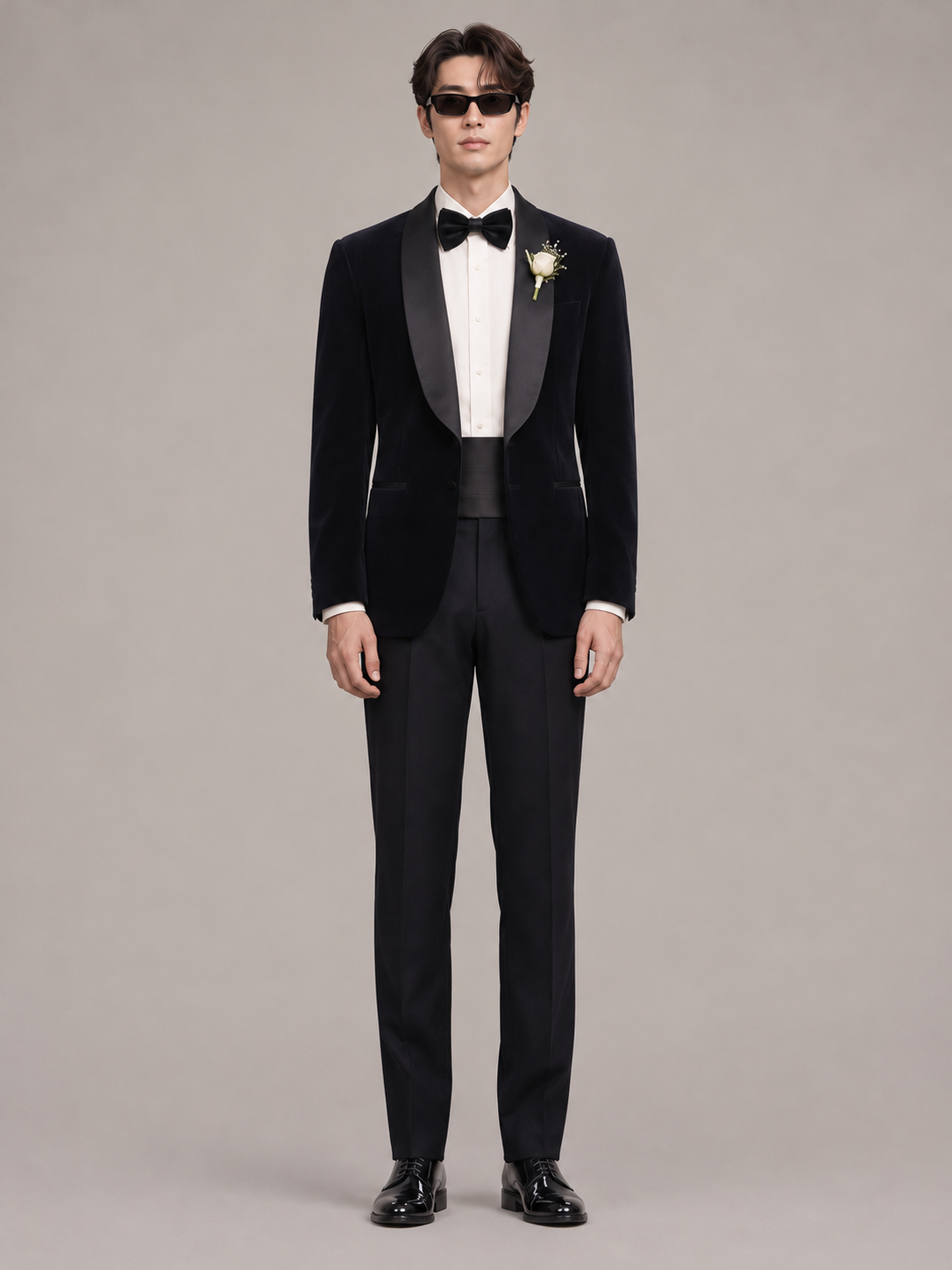
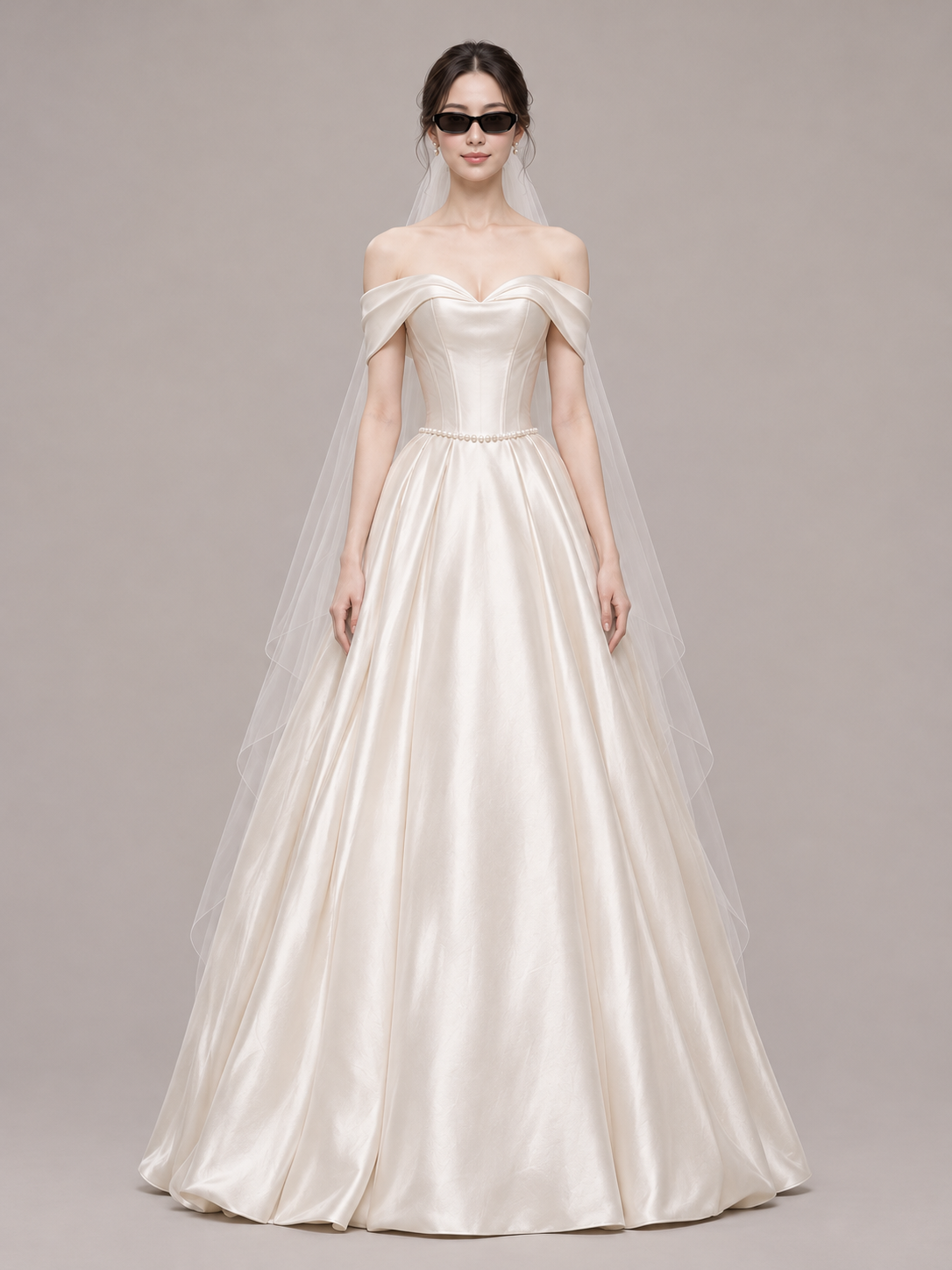
This wedding dance starts with two people standing side by side in a floral indoor setting. The person on the left wears a dark suit; the person on the right wears a white wedding dress. Sunglasses, small steps and coordinated hand gestures give the routine its playful feel. Watch the built-in clip to see the movements from beginning to end before choosing your photos.
The template supplies the movement for both people. You do not need to find a dance reference, upload another video, write an instruction or arrange a series of shots. Your part is to choose the two people who will appear in the performance and assign a photo to each side. The full 14-second reference is prepared for generation as one routine.
The preview also helps you decide whether this is the wedding video you want. You can play it again, pause on a gesture or look at how the two performers stand together. Once you have chosen your photos, the same reference provides the dance for your own version.
YOUR TWO PHOTOS
Choose who stands on the left and right
Upload one separate photo for each person. Photo 1 replaces the person in the dark suit on the left of the reference; Photo 2 replaces the person in the white dress on the right. The photos can come from different days or places. You do not need a picture of the two people together, and the roles do not require a particular gender pairing.
Pick images with one clearly visible person in each. A face looking toward the camera is easier to see than a face turned away, hidden behind a phone or covered by a hand. Good light helps you see the features and the clothing before you upload. Where possible, use a photo that shows the person's outfit and body rather than a tightly cropped face.
Think about the appearance you want to bring into the video when choosing those outfits. The photos provide the people; the reference provides their movement. If you are choosing between two pictures, compare how clearly you can see the face, clothing and limbs. Use your own images or photos of adults who have agreed to appear. Each upload can be a JPG, PNG or WebP file up to 10 MB.
MAKE IT YOURS
From two photos to a finished MP4
Start with the left photo, then add the right photo. Each selected image appears in its own slot, so you can check the pairing before moving on. If you change your mind, replace the image in that slot. A photo in the left slot and a photo in the right slot have different roles, even if the files have similar names.
Sign in with Google when you are ready to generate. You can choose the photos before signing in. The page shows the video cost for the complete routine next to the generation button. Check that both photos are in the intended positions, review the total, and submit the video once.
After submission, the result area shows the task's progress. When the video is ready, you can play it on this page and download the MP4. You can also find the saved task in Collection if you leave and return. Checking an existing task does not submit another generation. If you want another version with different photos, choose that pairing and start a new generation yourself.
WATCH, THEN DOWNLOAD
Check your wedding dance before sharing it
Play the result all the way through once before downloading it. Start by looking at the two performers together, then check each side during a hand gesture or a turn. This is a useful way to review the pairing and the dance as a whole, rather than judging the video from its first frame. You can pause or replay it in the player.
Download the MP4 to the device where you plan to use it. Having a local copy makes it easier to send the clip to your partner, add it to your wedding files or pass it to someone helping with the event. If you will use the dance in a longer wedding video, keep this downloaded file with the other material for that project.
For a group chat or a wedding announcement, a short introduction can be enough: tell people whose celebration they are watching, then let the dance do the rest. For a reception screen, check the downloaded file on the actual display beforehand. The page gives you the video; you choose the moment and audience that suit your celebration.
PART OF YOUR CELEBRATION
Give your wedding announcement a little movement
A wedding dance video can make an invitation feel more personal. Use the clip alongside a message with the date and place, or send it after your formal invitation as a playful reminder. The same two-person format works for a save-the-date, a countdown to the ceremony or a thank-you message after the celebration.
You might also make a version for an anniversary. Choose photos that show the two people as you would like to remember them, assign their positions, and use the routine as a small addition to a personal message. The dance does not need to stand in for the whole occasion; it can simply be the part that makes someone smile when they open it.
If friends are helping prepare the wedding, you can make a separate pairing for a message to the group. Decide who the clip is for before selecting the photos, so the choice of people and the message fit together. Each new pairing is a separate generation, with its cost shown before you begin.
COST AND SAVED VIDEOS
Know the cost before you make the full dance
The complete 14-second wedding dance uses 300 credits. Both uploaded photos are included in that one finished video. Review the full routine and the two photo positions before generating.
Use the credits shown beside the form, or choose the one-time purchase button. Checkout returns you to your saved photos. Review them, then use 300 credits to create the full wedding dance.
If a task is confirmed as failed, its reserved credits are returned once. Check a processing task's current status before starting another. Your finished MP4 appears in Collection, where a paid purchase unlocks downloading.
A few practical questions
Can we switch the left and right roles?
Yes. Put each person's photo in the slot for the role you want before generating. To reverse the pairing, replace the images in the two slots. Changing the inputs does not alter an already generated video; a new pairing needs a new generation.
Do we have to film ourselves dancing?
No. You supply the two photos, and the built-in clip supplies the movement. This creates a personal wedding dance video you can watch and download. You do not need to record the routine or upload a dance video of your own.
What should I do if I close the page while it is processing?
Sign in to the same account and open Collection to find the submitted task. You can check its status there and download the result when it is ready. Start another generation only when you want to create another version, rather than to check the first one.
Put the two of you in the next dance.
Choose your left and right photos, watch the routine, and review how many videos it uses. Your wedding dance starts with those two images.
300 credits, full routine