
How to Make a Photo Dance with AI
Learn how to make photo dance videos with AI. Turn a character photo and a reference dance video into an animated clip using Shimio.
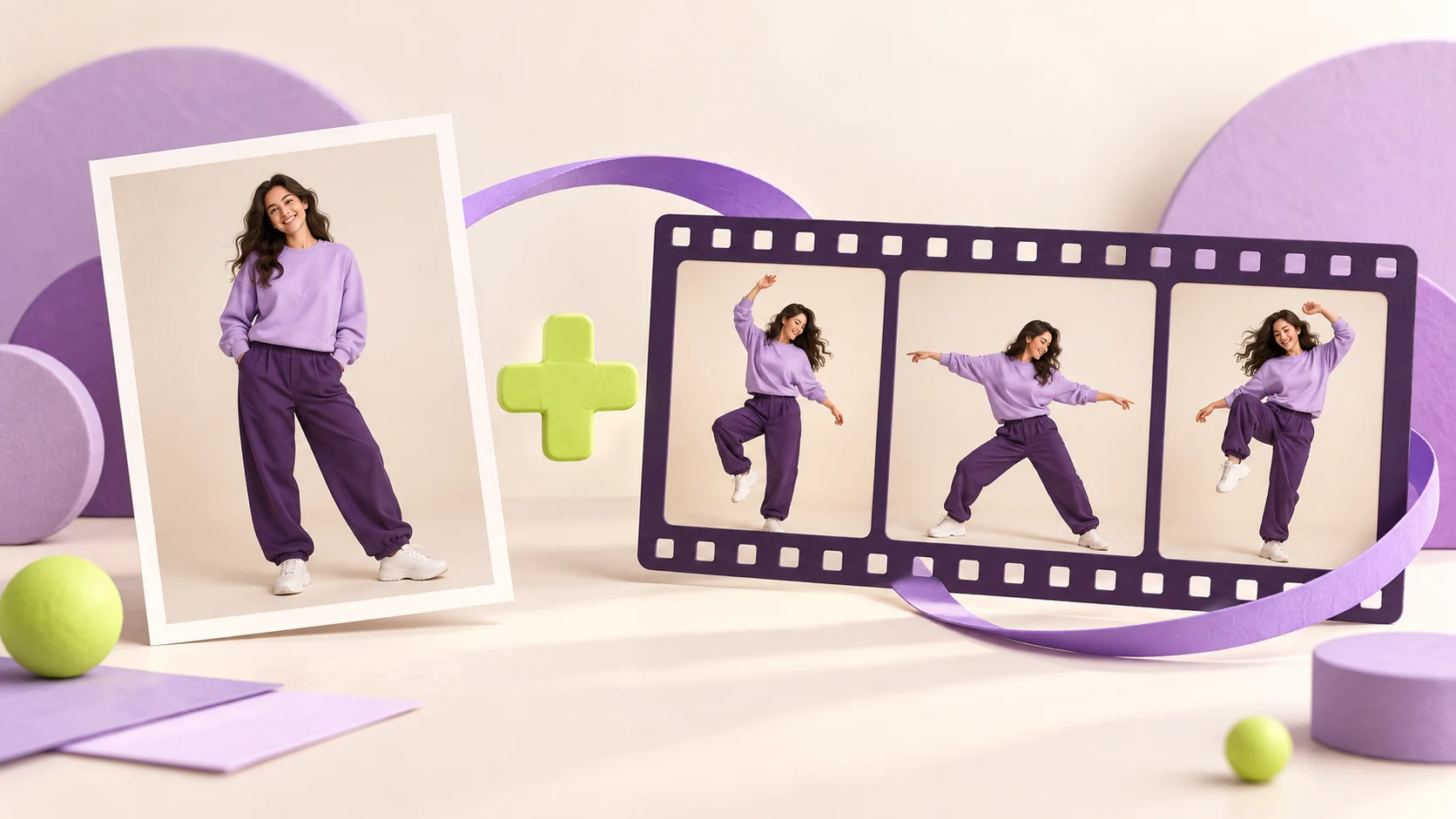
Every creator knows the feeling of staring at a still image that seems ready to move. It might be an original character illustration dressed in layered streetwear, a whimsical mascot painted for a brand campaign, or a striking portrait with an unmistakable attitude. In another window, you have a short video clip of a dancer hitting every beat of a choreography you love—a crisp hip-hop isolation, a playful retro shuffle, or an upbeat chorus routine. For a long time, bringing those two worlds together meant either spending days inside complex rigging software or settling for generic, pre-built animation templates where you had no real say in the steps.
Today, you can make a photo dance using the choreography that inspired you in the first place. Shimio is a browser-based AI Dance Generator built around a simple, expressive premise: you control both the performer and the performance. Instead of forcing your artwork or portrait into a stock loop that everyone else is already using, the studio lets you pair your own character image with your own dance reference clip. The photo supplies the visual identity, and the video supplies the movement and timing, giving you a clear, creative path to turn a photo into a dance video right inside your web browser.
Two Creative Inputs, Endless Personality
What makes any dance clip captivating is the chemistry between who is on screen and how they move. When you make a picture dance by pairing two separate inputs, you step into the role of a director casting a miniature performance. Your still image establishes the wardrobe, colors, proportions, and visual mood, while your motion reference acts as the choreographer behind the curtain, guiding every weight shift, arm wave, and rhythmic pause.
Think about the combinations already waiting inside your design folders and camera roll. If you are an illustrator or concept artist, you can take a static character sheet of a sci-fi heroine and pair it with a sharp, energetic street-dance routine to see how her jacket and posture come alive in motion. If you build worlds for tabletop games or webcomics, you can give a stoic fantasy portrait an unexpectedly joyful celebratory step. Even a stylized brand mascot, a vintage-style portrait, or a vibrant digital avatar takes on a completely new dimension when matched with a smooth soul groove or a theatrical spin.
Because you choose the motion source yourself, the result never feels like a canned filter. Pairing a character image with a subtle, laid-back nod and sway gives the scene a cool, understated presence, while matching that very same image with a high-energy footwork sequence turns the clip into an instant showstopper. By mixing and matching different portraits with different styles of movement, you can explore how changes in tempo and body language transform the personality of a single frame.
Step Inside the Studio: How to Make a Photo Dance
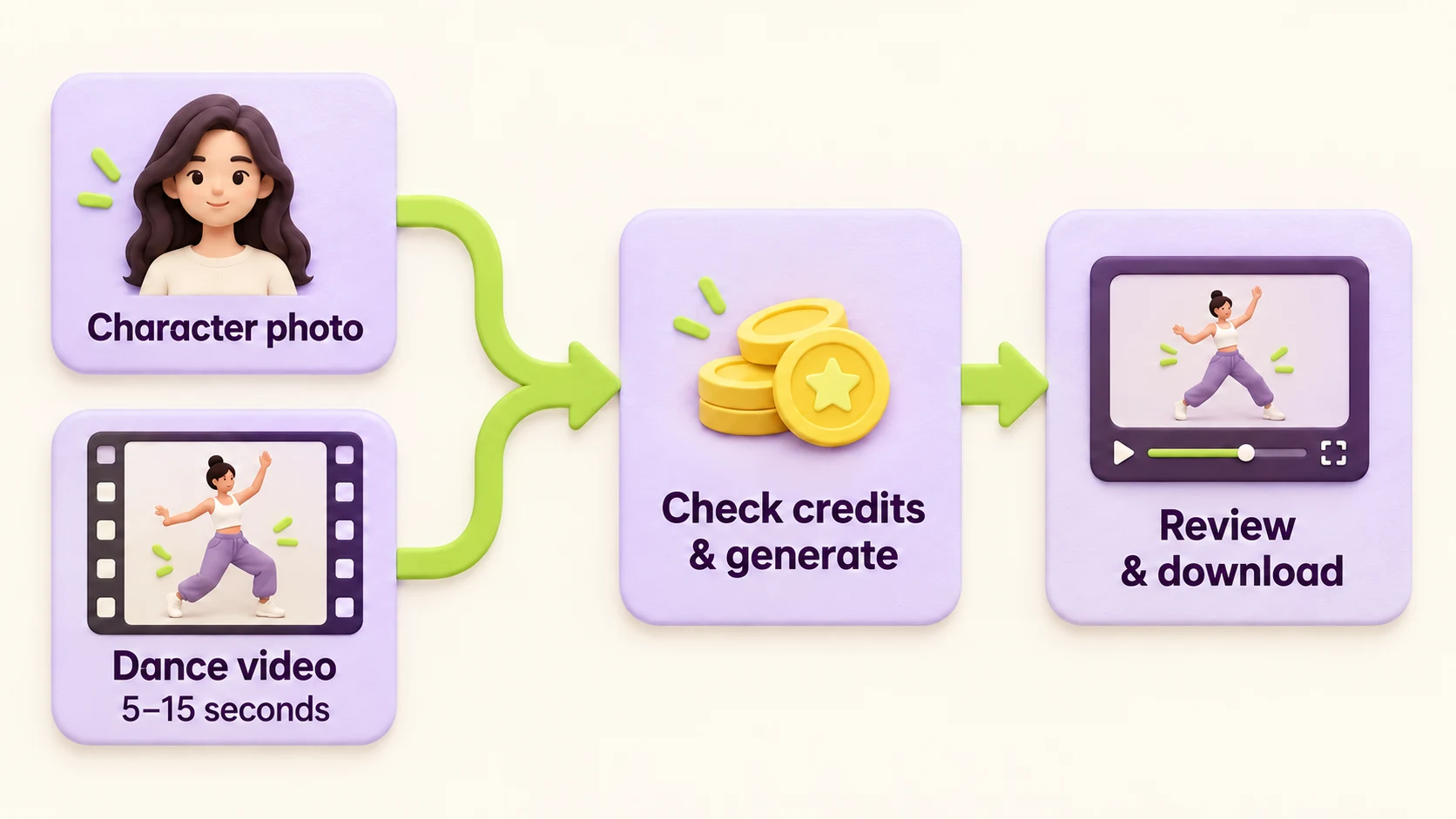
Moving from an initial spark of an idea to a finished clip follows a clear, intuitive path designed to keep your focus on creative choices rather than complicated technical menus. Everything happens inside a single browser workspace, starting as soon as you sign in at the creation studio to set up your session.
Your first step is introducing your star under Character photo. This upload gives Shimio a visual reference for your dancer's facial features, hairstyle, outfit, and overall aesthetic. Right beside it, you upload your dance reference under Motion video, which guides the choreography and timing of the routine from the opening beat to the closing pose. To keep your setup straightforward, the studio accepts character photos in JPG, PNG, or WebP formats up to 10MB, alongside reference videos in MP4 or MOV formats lasting 5–15 seconds and up to 25MB.
As soon as your files are added, the workspace displays built-in previews for both inputs side by side. Being able to inspect both previews before moving forward lets you evaluate your pairing like a director checking the frame. You can look closely at your character's stance while playing back your reference video to confirm you selected the right cut of the choreography and the exact version of the portrait you want on screen.
With your performer and choreography locked in, you choose whether to generate 1, 2, or 4 outputs. Generating a single output is a great way to test a fresh pairing quickly, while selecting 2 or 4 outputs lets you review multiple takes of the same routine side by side, giving you options to pick the rendition with your favorite details. If you want to add an extra layer of guidance to the scene, you can open Advanced Settings and enter an optional text prompt to nudge the mood or visual direction while your uploaded photo and motion reference continue to lead the way.
Before you start the generation, the studio displays a clear credit quote right on screen. Whether you are creating a single video or a batch of four variations, you see the exact credit requirement upfront before confirming your run.
Directing the Details and Exploring Variations
When creators first explore tools that make photo dance projects possible, they quickly discover how much storytelling lives in the nuances of their inputs and settings. Because your reference video drives the rhythm and pacing of the clip, choosing a dance segment with a distinct musical phrase or a memorable finishing pose makes the animation feel deliberate and musical. A reference routine that begins with a brief pause before hitting a sharp movement gives viewers a split second to admire your character's design before the choreography takes over.
Taking advantage of the multiple-output option in the creation workspace adds even more creative flexibility to your workflow. Just as a live dancer brings slightly different energy to consecutive takes on a stage, generating 2 or 4 outputs at once allows you to compare subtle variations in how clothing drapes, how lighting interacts with movement, or how a character holds their expression through a fast turn. Pairing a multi-output run with the optional text prompt inside Advanced Settings also gives you a playful way to refine the atmosphere of your clip while keeping the core choreography intact.
Once your generation finishes, your completed MP4 videos are waiting for you in your video library. There, you can watch your routines right in the browser, compare different takes from your multi-output sessions, and download your favorite MP4 clips directly to your device. Having clean, downloadable files means your dancing characters are ready whenever you want to share a quick reveal with friends, publish an engaging post to your social channels, or cut a sequence into a longer creative reel.
Bring Your Next Character to the Dance Floor
There is an unmistakable thrill in watching a still image you love catch a beat for the first time. Whether you are testing how a freshly sketched character moves in full color, putting together a playful visual teaser for an upcoming project, or simply matching a favorite portrait with a dance routine that makes you smile, Shimio brings the entire process together in a clean browser studio.
You do not need keyframe timelines, rigging plugins, or heavy desktop software to unite your favorite imagery with expressive choreography. Whenever you are ready to plan your projects, you can review the available credit options on the pricing page to find the right fit for your creative workflow. Pick out a character photo with personality, grab a short dance clip with great rhythm, and head to the Shimio studio to watch your image hit its first move.