
How to Make a Looping AI Dance Meme
Make a looping AI dance meme with a repeatable routine. Choose a reference passage, compare the end and start, and trim the MP4 for a smoother replay.
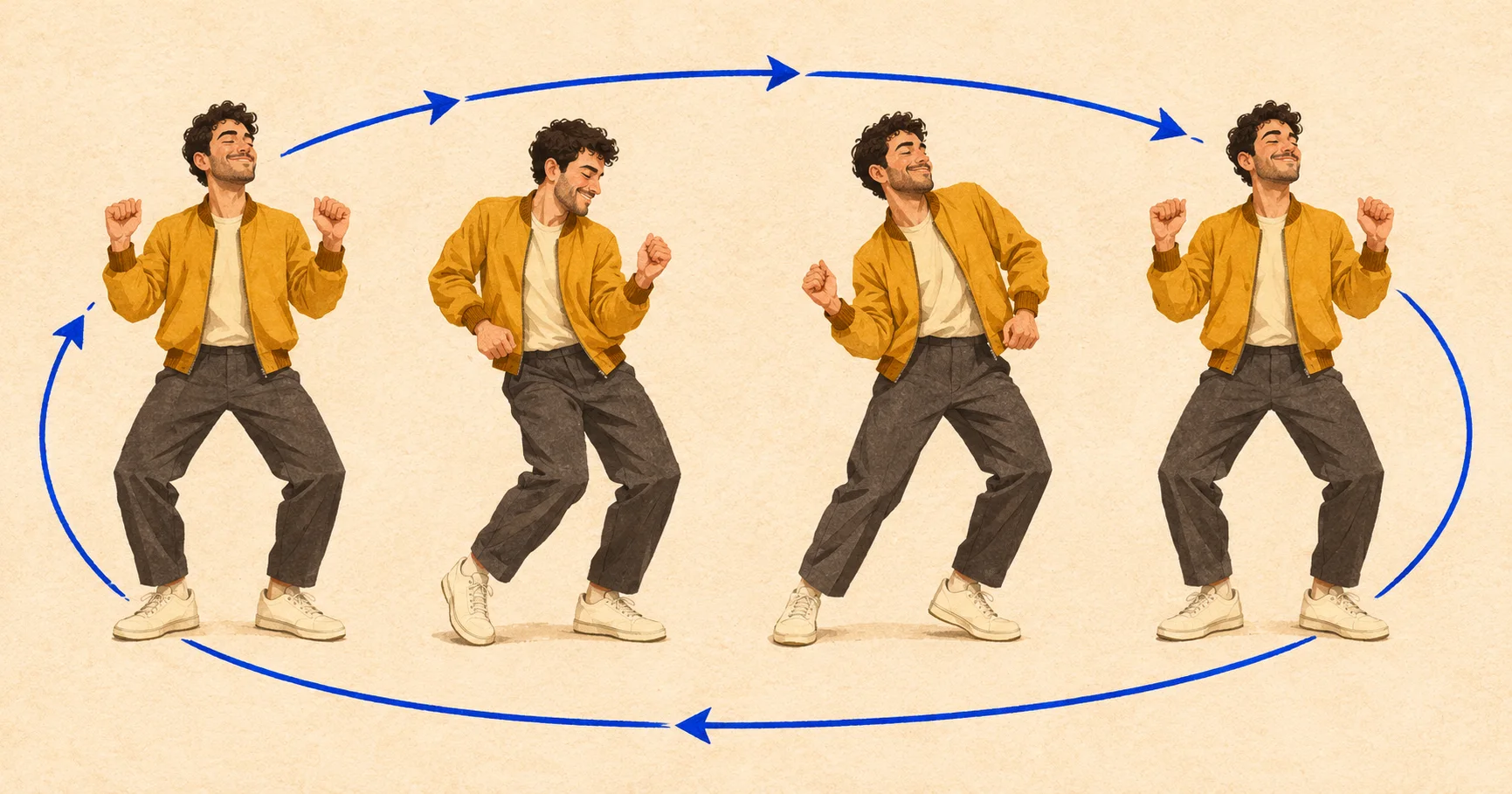
A looping AI dance meme feels continuous when the last movement leads naturally into the first. Start with a repeated dance pattern, choose a passage that contains a complete cycle, and check the join by playing the same clip back to back.
You can prepare the character performance in the Shimio video workspace, then test and trim the downloaded MP4 in your usual video editor. The important decisions are where the cycle begins, where it returns, and whether the dancer is still moving in a compatible direction at that return.
A side-to-side groove, a repeated shoulder bounce, or an arm pattern that returns to its opening position gives you a clear place to start.
1. Find the repeated unit in your reference
Watch the reference for a movement that happens more than once. Follow one full repetition before deciding where to cut. You want to see the action leave its starting phase and arrive at a point where another repetition can follow.
For example, a dancer might shift left, shift right, then return to the same bent-knee stance. The useful unit is that whole pattern. Cutting after only the leftward shift leaves the dancer in a different place when the video restarts.
Count the movement if it helps. If the same phrase returns after eight counts, compare the beginning of one phrase with the beginning of the next. Choose the length from the routine's actual repetition rather than an arbitrary number of seconds.
A continuous camera view makes this easier. Check a fixed object in the background as well as the dancer. If the camera has moved across the room, the person might return to the same pose while the scene still jumps at the restart.
Keep the clip's purpose simple. A single repeating gesture can carry a reaction caption or a character joke. A routine that builds toward a final bow may be better suited to a clip with a deliberate ending.
2. Compare the end and start as a moving join
Pause near your proposed start and end, and compare three things: the pose, the dancer's position in the picture, and the direction of the movement.
Two similar stills are a useful first check, but also watch the few frames on either side. A raised hand can be passing the same height while moving upward in one moment and downward in the other. Those frames may look alike on pause yet produce a visible change of direction when joined.
| What to compare | What to follow across the join |
|---|---|
| Pose | Head angle, torso orientation, hand height, knee bend, and which foot carries the weight |
| Screen position | The dancer's location and size within the frame |
| Movement | The direction and pace of the hands, feet, and body as the next cycle begins |
| Scene | The floor, background objects, camera angle, and visible lighting |
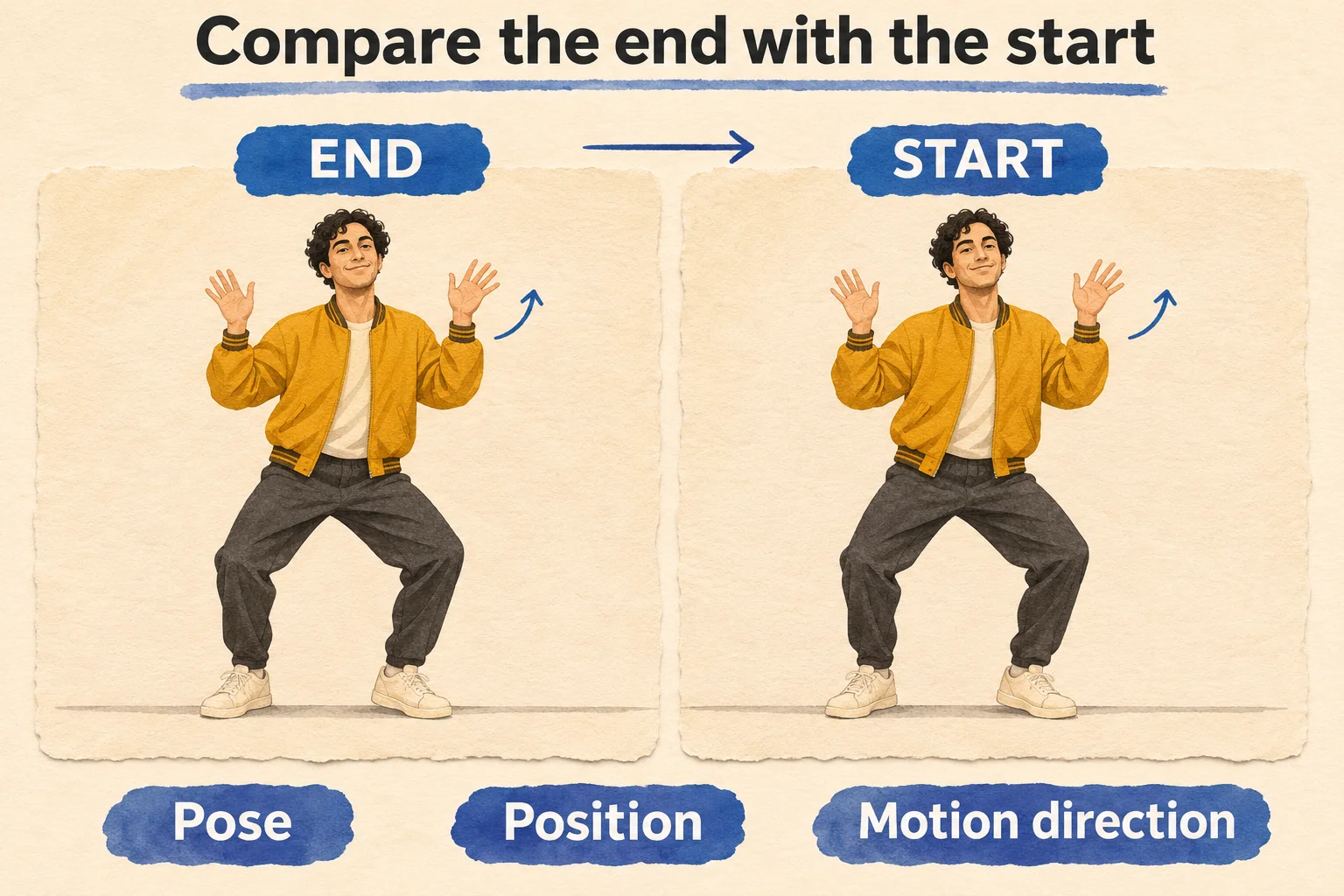
Check the pose, position and direction of motion on both sides of the join.
Viggle's guide to looping meme videos organizes its advice around movement continuity, endpoint alignment, and pacing. For a reference-based dance, those are useful viewing checks before you choose a passage and again after you receive the new performance.
Make a note of the part that breaks the join. “The right hand jumps lower” is easier to fix with an edit point than a general feeling that the loop is rough.
3. Prepare the dance passage and character in Shimio
Use a reference video you have permission to upload and a clear character photo. If the movement shows the whole body, choose a photo that includes the outfit and shoes you want in the performance.
In the workspace, select your model and upload the reference under Dance Video. Use the scissors button in the preview to select the passage around your repeated movement. Keep it within the selected model's minimum and maximum clip length.
If one movement cycle is shorter than the model's minimum, look for a passage containing two complete cycles. That gives you continuous movement to work with rather than extending a short action with a long still hold.
Upload the character under Photo 1. Choose the background source that suits your scene, and keep the dancer's placement in mind: a loop is easier to compare when the person stays fully visible within the shared framing.
Choose Save clip to retain the selected passage. This prepares the input without generating a video. Review the character photo, passage, background, and available credits, then use Generate and complete the confirmation shown.
For the complete character-photo workflow, the character replacement walkthrough explains the inputs and the MP4 result.
When the take is ready, watch the whole passage and download the version you want to edit. Check the generated movement itself: its best join may fall a little earlier or later than the boundary you identified in the reference.
4. Put two copies together and trim the boundary
Open the MP4 in your usual video editor. Place a copy immediately after the first clip on the same timeline, with no blank space between them. Play from a little before the join to a little after it.
This makes the restart part of a continuous playback window, so you can watch the dancer cross the boundary without stopping the player and starting it again. Add a third copy if you want to hear and see several repetitions in a row.
The basic duplicate-and-export method is documented in Kapwing's loop-video instructions. You can use the same review idea in an editor you already know.
Adjust the beginning or end of your chosen cycle in small steps. Look for the point where the next hand movement, weight shift, or shoulder bounce continues naturally. After trimming, keep the copies touching so a gap does not become a black frame at the restart.
If the join pauses, check for a held ending or an unnecessarily repeated endpoint frame. If the same pose lasts across both sides of the cut, try removing the extra hold and replaying the boundary. If the dancer jumps sideways, return to your position comparison and look for another point in the cycle.
Kapwing's editing overview also separates trimming from positioning the clip on the timeline. That distinction matters here: changing the visible passage and closing the resulting gap are both part of the edit.
5. Check the rhythm, caption, and final crop
Once the visual join works, listen to the audio you plan to use. Compare the beat immediately before the join with the beat immediately after it. A clean picture cut can still feel like a restart if a sound ends abruptly or the rhythm loses a count.
Check the visual cycle on mute as well. This lets you notice a hand jump or a sudden body reset that the music may have distracted you from. Then turn the sound back on and assess the two together.
For a reaction meme, keep the caption readable through the repetition. Text that suddenly disappears at the join introduces another visible event, even if the dancer's movement connects well. Decide whether the caption should stay throughout or whether its timing is part of the joke.
Review the crop you will actually post. Keep room for the arms at their widest point and for the feet during the side steps. Apply the same framing through the cycle so the person does not appear to change size at the boundary.
Export the edited MP4, reopen that file, and play it through several repetitions. This final pass checks the file you will share rather than only the editor preview.
Fix the part of the loop that interrupts the movement
Use what you can see at the join to choose the next adjustment.
| What interrupts the loop | What to check |
|---|---|
| The dancer snaps to another position | Compare the body location at the start and end, then move an edit point to a closer match. |
| The hands change direction abruptly | Watch the motion around the two endpoints, not only the paused poses. |
| There is a pause or a black flash | Check for an ending hold, a repeated frame, or a gap between copies. |
| The room jumps while the dancer aligns | Compare the camera and background; choose a reference passage with a more stable view. |
| The picture connects but the rhythm feels broken | Recheck the musical count and the audio cut at the join. |
When the repeated action reads clearly, use the finished clip as a reaction, a character introduction, or a short greeting. Begin with one recognizable move and give it a boundary that lets it continue. Prepare your looping dance in Shimio.