
Character Swap AI: Replace a Dancer in a Video
Watch a dancer become a new character, then recreate the effect in Shimio with one photo and a dance video. Follow the comparison and step-by-step guide.
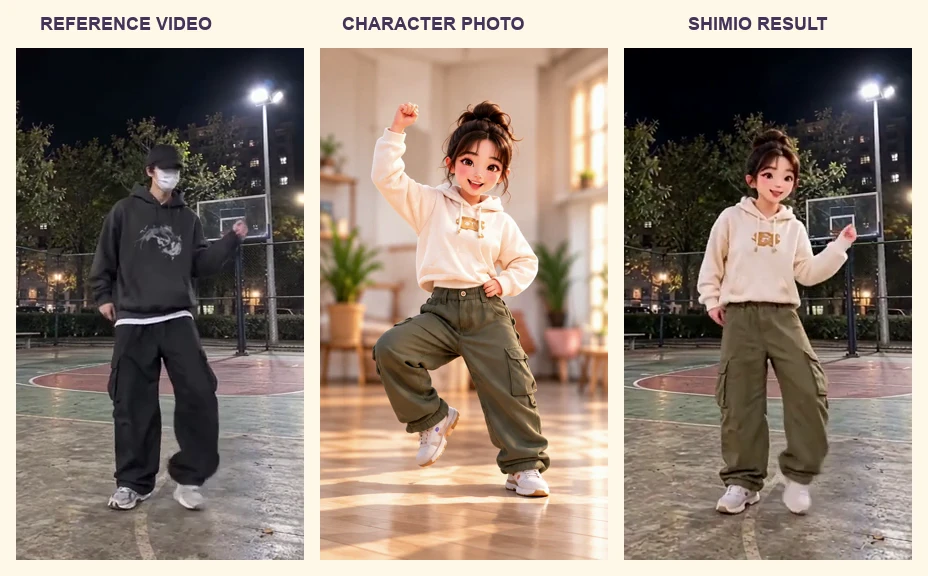
This is the same routine, with a new performer. In the comparison above, the dancer in black becomes the cartoon character from the photo, while the basketball court stays in the scene.
Try your own character swap with Shimio. Upload a character photo and a dance reference to create your own performance.
Watch the reference video · Watch the Shimio result
The two clips run for seven seconds. Watch the hands come together in front of the chest, then follow the steps into the next move. The new character wears the cream hoodie and green trousers from the photo, even though that photo was taken in a different setting.
That is the useful part of a character swap AI workflow: you can choose a character's look and give it a routine you already want to use. The dance reference supplies the performance; the photo supplies the character. Here is how to prepare those two inputs and make your version in Shimio.
1. Choose the dance you want your character to perform
Start with a move you would want to share: a short routine for a character introduction, a playful greeting or a post built around a favorite dance. Choose the performance first, then decide who should appear in it.
For your first attempt, use one dancer who stays visible throughout the passage. The example keeps the dancer's whole body in view on the court, so you can see both the hand gestures and the footwork. A continuous camera view makes the routine easy to follow.
Watch the beginning and ending before uploading. Start before the first move you want and finish after it resolves. If the camera cuts away or the dancer leaves the frame during the best part, choose another passage that shows the action completely.
You can use footage you recorded or have permission to reuse. Shimio accepts MP4, MOV, WebM and MKV reference videos; you will select the part to generate inside the workspace.
2. Choose the character and outfit
Use one clear photo of the person or character you want to put into the routine. For a full-body dance, show the face, clothes, hands and shoes clearly. The image should contain the outfit you want to see moving.
In this example, the character photo establishes the cream hoodie, loose green trousers and white shoes. The finished character follows the court dancer instead of holding the raised-knee pose in the photo. You can choose an existing character image directly for this step.
Match the framing to the performance. For footwork, show the whole character; for a close upper-body gesture, choose a similarly framed photo. A readable face and clear limb outlines give you useful details to compare when the result is ready.
Character photos can be JPG, PNG or WebP, up to 10 MB. If you choose Use photo background, keep the background-source image at 5 MB or smaller.
Optional: improve your starting frame
When the pose or framing needs more preparation, you can create a character image that matches the opening of the reference. Justine Moore's character-swap walkthrough shows this approach.
Save a still from the start of your chosen passage, then open it with your character image in an image editor that accepts references. Ask it to keep the camera view, body placement and starting pose while changing the face, hair and outfit.
Inspect the edited image before uploading it. Check the character's face, clothing and hands against the original character image, then use the version you prefer as Photo 1.
3. Put the two inputs together in Shimio
Open the Shimio video workspace and sign in. Choose a model, add your reference under Dance Video, and add your character image under Photo 1. Set Videos to generate to 1 for the first take.
Check both previews before going further. The reference should show the routine you chose, and Photo 1 should show the character and clothes you want in it.
Make this dance with your own character
Choose which scene to keep
Under Background, select the setting for the finished video:
-
Keep video background keeps the location from the dance reference. This is the choice to make when you want the basketball court from the example.
-
Use photo background takes the setting from your character image. Choose it when you want the performance in a scene you prepared around the character.
The scene is a creative choice you can make before generating. You might keep the original court for one version, then prepare a character photo in a different location for another. Leave enough room around the character for the movements you want to show.
Select the passage and generate one take
Click the scissors button in the center of the reference-video preview. Adjust Start (s) and End (s), play the selection, and click Save clip when it includes the complete movement.
The clip editor shows the allowed duration for your selected model. New accounts receive 40 welcome credits once, enough for one four-second Basic 1.0 video. To start with that allowance, choose a four-second passage and generate one video.
The model, selected length and output count affect the total credits required. Keep your first attempt focused on one passage and one output, then review the displayed total before submitting.
Click Generate in the workspace to open the confirmation. Check the selected passage and total, then click Generate in that confirmation to create the video.
4. Compare the performance, then download it
When the video is marked Ready to view, watch it at normal speed. Does it carry the part of the dance you wanted to recreate? Can you recognize your character and outfit as the movement continues?
Then pause the reference and result at the same point. In the example below, compare where the hands meet in front of the chest and how the feet are placed. Matching moments make the difference between a new character and a new movement easier to see.
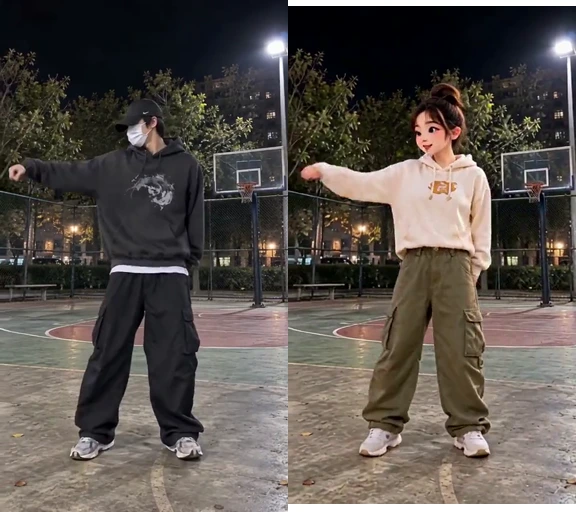
The same moment in the reference, left, and Shimio result, right.
Check the opening, the main gesture and the ending, then play the passage through again. Keep the take that works as a complete performance, including the transitions between those moments.
Use Download MP4 to save your chosen result. Your saved videos are also available in Collection. Open the downloaded file once before posting, and check the crop in your usual editor so the hands and feet you want to show stay visible.
If your next take needs an adjustment
Choose the change that addresses what you actually see:
| What you notice | What to change |
|---|---|
| The video starts halfway through the move | Move the selection start earlier to include the lead-in. |
| The feet leave the frame during the dance | Choose a wider reference and a full-body character photo. |
| The character is hard to recognize during a turn | Try a clearer character image or a less extreme turn. |
| The scene differs from the one you wanted | Recheck Background and the setting in the selected photo. |
Change one input at a time so you can judge the next result. If the routine works, keep that reference and try another character image. If the character looks right but the performance feels incomplete, keep the image and adjust the passage.
Make your own version of the dance
Choose the routine, cast your character and decide where the performance should happen. The example keeps the court and changes the dancer; your next version can start with a character and scene that fit your own post.
Try your own character swap with Shimio
Upload a character photo and a dance video to create your own performance.
References and workflow reading
-
Hu, L., et al. (2023; revised 2024). Animate Anyone: Consistent and Controllable Image-to-Video Synthesis for Character Animation. arXiv:2311.17117.
-
Gu, Y., et al. (2023). VideoSwap: Customized Video Subject Swapping with Interactive Semantic Point Correspondence. arXiv:2312.02087.
-
Moore, J. (2026). How-to Guide for Viral AI Character Swaps. X.