
Face Swap vs Character Swap: Which Fits Your Dance Video?
Compare face swap and character swap for dance videos. Choose the right photo, decide what changes, and check the face, outfit and movement before downloading.
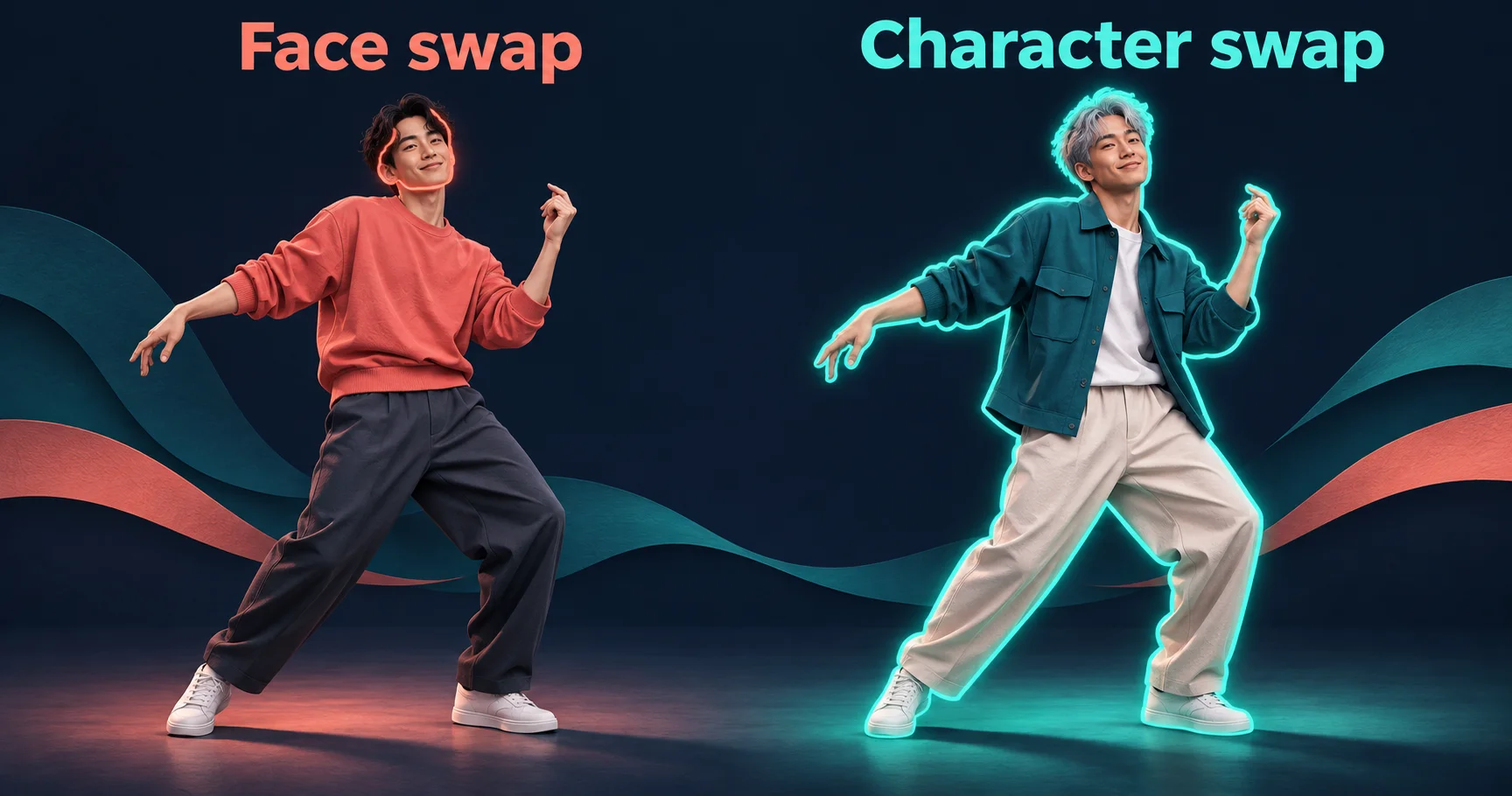
Face swap is the right starting point when you want a new face on the dancer's existing body and outfit. Character swap fits a different goal: you want the character's hair, clothes and overall appearance to join the performance.
For a dance video, that choice affects more than the portrait. A hoodie, a long coat or a different body silhouette can change how the routine reads. Decide what the finished dancer should look like before choosing your photo or uploading the clip.
Face swap vs character swap: what changes?
A face swap mainly replaces facial identity. The original performer's hair, clothing and body generally remain part of the shot. A character swap targets the person's broader appearance, using a character image to guide the replacement.
The terminology varies between tools. Some use “body swap” or “character replacement” for the second workflow. Check what the tool actually changes rather than choosing by its name alone.
| Your decision | Face swap | Character swap |
|---|---|---|
| What should change? | Mainly the face | Face, hair, outfit and overall character appearance |
| Which outfit appears? | Usually the original dancer's outfit | The character image guides the outfit |
| What should the photo show? | A clear, recognizable face | The character and the clothing needed for the shot |
| What supplies the dance? | The source performance | The reference performance guides the new character |
| What needs close review? | Face blending and head turns | Identity, clothing, body outline and movement |
VideoSwap's comparison describes the same distinction between facial replacement and full-character recasting. Treat the table as a guide to the intended edit; individual tools differ in how much of the scene they regenerate.
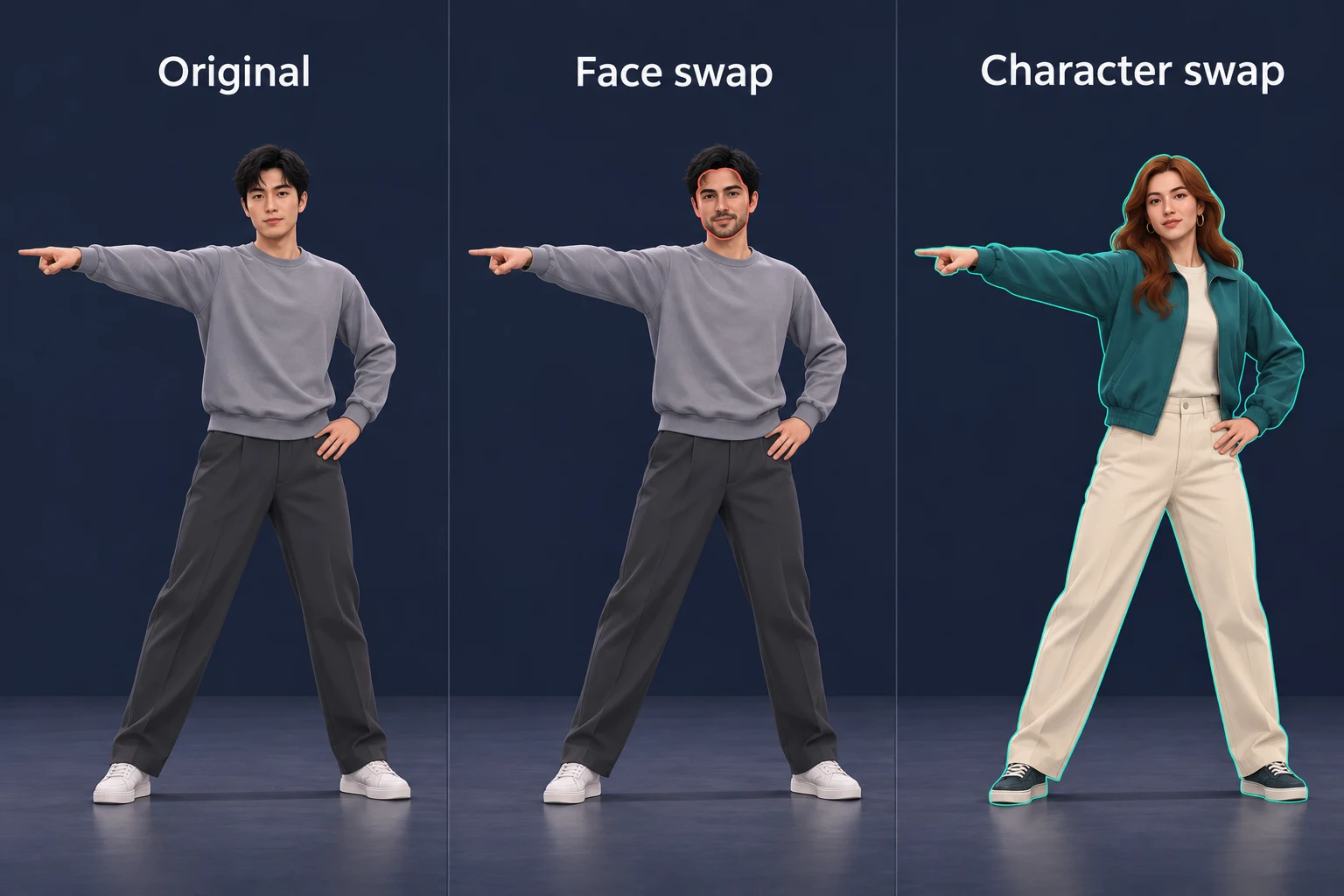
Read the change from left to right: the face changes in the middle panel; the hair, outfit and whole character change in the right panel.
Choose by the dancer you want on screen
Keep the existing costume and change the face
Suppose you filmed a routine in a red jacket and like the choreography, framing and costume. You want another approved face to appear on that same performer. A face swap matches that brief because the body and styling already do the job.
This choice also makes sense when the costume itself matters: matching outfits in a team clip, a particular stage look, or a joke built around the original clothes. Before choosing it, watch a moment where the dancer turns sideways. The face still has to fit the original head, lighting and performance.
Bring in a different outfit or complete character
Now imagine the same routine starring a character with silver hair, a teal jacket and pale trousers. Changing facial features alone would leave the original costume in place. A character swap is the relevant workflow because the requested change extends across the whole person.
This can help you turn one routine into a character introduction or give a recurring character a new dance. Use an image that actually shows the look you want. A close portrait cannot clearly specify shoes or trouser shape.
Move the character into a different setting
Background choice is a separate decision. Replacing a whole character does not automatically tell a tool whether you want the original dance location or the setting from the character photo.
For example, a character photographed indoors could perform in the reference video's outdoor court, or the photo's room could become the setting. Decide which scene belongs in your finished clip, then use the tool's background controls where available.
Why a dance clip needs more than a convincing face
Dance often puts the face at a distance while the arms, clothing and feet carry the recognizable movement. A result can resemble your character in a still frame yet miss the pose that made you choose the routine.
There is also a technical difference in the editing task. The FaceShifter paper studies facial identity replacement and explicitly addresses facial occlusion. The VideoSwap research paper studies replacing a video subject with one that can have a different shape, using semantic points to guide motion alignment.
Those papers concern different systems, but they help explain the distinction: editing a face and fitting a new subject to a moving performance ask different things of the model.
For your choice, separate two questions. Does the dancer have the appearance you wanted? Does the dancer still perform the important moves? Review both before deciding that an attractive result is the right take.
Prepare the photo for the edit you chose
For face replacement, select a sharp photo with a readable face. Watch for shadows, sunglasses or hair that hide important features. Then check the video: a face visible in the opening frame may disappear behind a hand during the move you care about.
For whole-character replacement, inspect the photo from head to shoes. The visible hairstyle, clothing and silhouette should support your intended result. If the dance includes wide arm movements, make sure the sleeves and upper-body outfit are clear. If the footwork matters, choose an image that shows the lower half.
VidGuy's source-material guide also emphasizes readable subjects, appropriate framing and full-body images when clothing matters. Its product settings belong to that tool; the useful preparation principle is to make the appearance you want easy to see.
Use a reference clip you own or have permission to edit. For a first attempt, choose one dancer in a continuous shot with visible hands and feet. Pick a passage that contains a recognizable move and its landing, so you can judge the transition as well as the pose.
Use Shimio for the whole-character dance workflow
In Shimio's dance workspace, your character photo supplies the appearance and your reference video supplies the moves. That makes it relevant when your brief includes the character's clothing and full look.
Add your character photo and dance reference, then choose whether to use the photo background or keep the video background. Open the scissors control on the reference preview to select the passage you want. Save the clip selection, review it and use Generate when you are ready.
Choose a passage within the selected model's displayed duration range. Keep the move you want to judge fully inside the selection, including its beginning and ending.
For the complete upload walkthrough, follow Character Swap AI: Replace a Dancer in a Video. Here, the decision is whether a whole-character replacement matches the dancer you want to create.
Check the same three moments before downloading
Compare the source and result at matching moments rather than choosing unrelated attractive frames.
- The opening pose: Does the face resemble the chosen character? For a character swap, also check the hair, outfit and body outline.
- A turn or crossing: Watch where the face becomes less visible, a hand passes the torso, or one leg crosses the other. Look for clothing or identity changes as the dancer moves.
- The landing: Check which foot takes the weight, where the arms finish and whether the dancer completes the gesture at the intended moment.
If the original jacket remains after a face swap, the edit may be doing exactly what you requested. If you wanted a different jacket, change the workflow. If the character looks right but a key step is missing, revisit the reference passage and compare another take.
Start with a brief you can judge: “Keep this costume and replace the face,” or “Use this character's hair and outfit for this routine.” Once that choice is clear, you can prepare the right photo, generate the relevant edit and select the dance video that fits your idea.